
1. BASIC CONCEPTS #
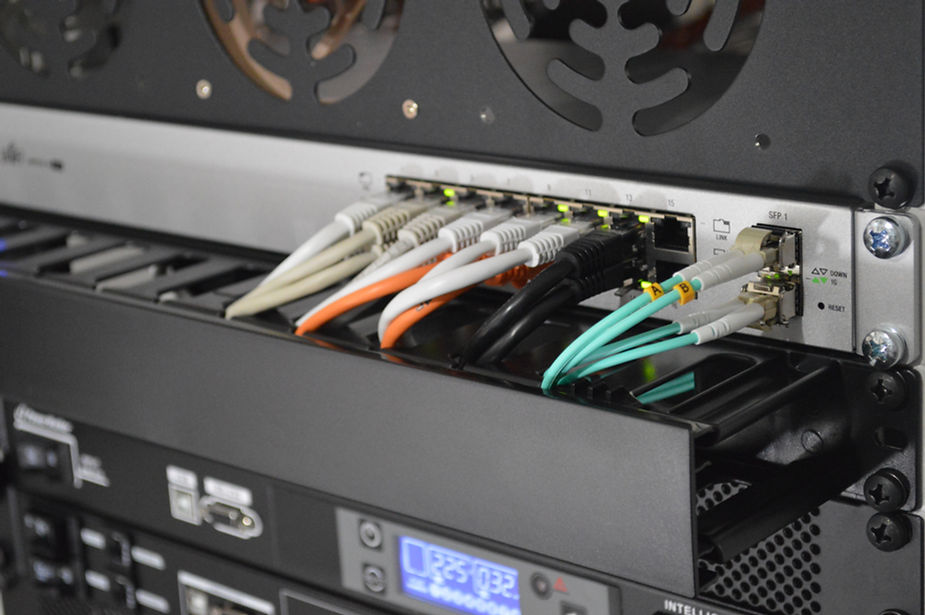
Ethernet is a data networking technology that enables various devices to be connected to a local area network. This technology facilitates communication between these devices and the transmission and sharing of information among devices on the network.
Transmission Control Protocol/Internet Protocol (TCP/IP)
This term refers to a set of communication protocols used to connect devices on a network (including the Internet). TCP ensures reliable and fast data transmission by verifying packet delivery and resolving issues (such as lost packets). UDP (User Datagram Protocol) is a slightly less reliable protocol used in situations where low latency and loss tolerance are critical (e.g., in online games or voice communication). UDP enables fast data transmission but does not guarantee delivery.
By IP addresses, we mean the specific numerical representations of devices connected to the network. Each device has its own unique, unambiguous IP address, which enables identification of and communication with that device. For example, for the LED Ethernet Controller 3, the recommended IP address range is 192.168.1.1 to 192.168.1.254.
IP addresses are divided into different classes; they can be assigned statically or dynamically (automatically) using DHCP (Dynamic Host Configuration Protocol). The valid range for an IP address is from 0.0.0.0 to 255.255.255.255.
2. MANUALLY CONFIGURING THE COMPUTER’S IP ADDRESS AND THE DEVICE’S IP ADDRESS #
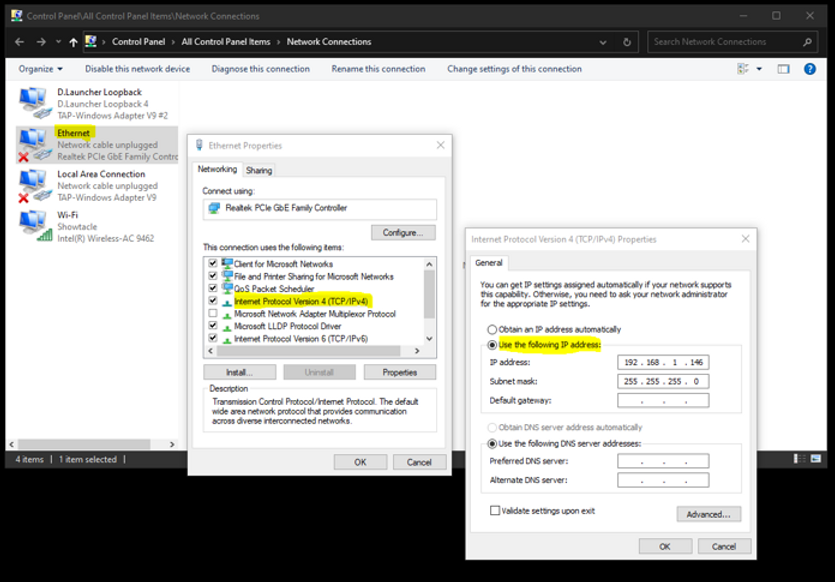
When connecting to the internet, you don’t need to worry about manually assigning an IP address. Most devices use the DHCP protocol mentioned above. However, if necessary, you can manually configure the IP address settings by accessing your device’s network settings. Click on: Settings > Network *&*Internet > Ethernet > Change adapter options > Ethernet > Internet Protocol Version 4 (TCP/IPv4). Manually set the desired IP address.
The IP address settings for the controller depend on the specific controller you are using. Some controllers provide DIP (Direct In-line Package) switch settings, while others have a control display or web configuration options. For the LED Ethernet Controller 3 (LEC3) or similar controllers, the IP address is typically configured via web configuration. This involves accessing a web page hosted on the controller.
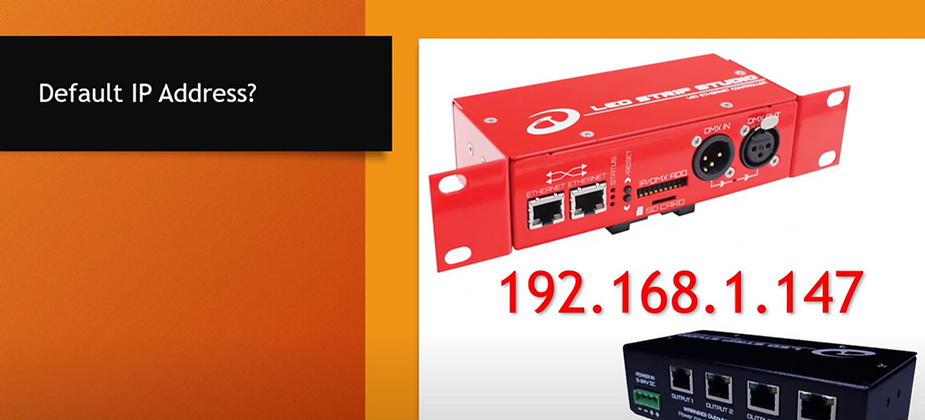
To set up web configuration, you will need the IP address of the panel connected to the LEC3. The default IP address for new LEC3/SPI Matrix controllers is 192.168.1.147.
3. PING #
The “ping” command is a common tool used to determine whether a device with a specific IP address is connected to the network.
To use the "ping" command, follow these steps:
-
Open the command prompt in Windows by clicking the Start menu and typing "cmd". This will open the command prompt window.
-
Type “ping” followed by the IP address you want to check into the command prompt. For example, “ping 192.168.1.161”.
-
Press Enter to execute the command.
If there is a device or computer at the specified IP address and it is connected to the network, you will receive a response indicating a successful connection. However, if there is no device or computer at the IP address you are pinging, an error message will usually appear.
What IP address should I set on my computer to talk to an LEC3 controller?
The default LEC3 IP is 192.168.1.147, so your computer needs to be on the same subnet — something like 192.168.1.50 with a subnet mask of 255.255.255.0. You set this in Windows under Settings > Network & Internet > Ethernet > Change adapter options > Internet Protocol Version 4. Once both devices are in the same range, type 192.168.1.147 in your browser and the controller’s web interface appears.
What's the difference between TCP and UDP, and which one does Art-Net use?
TCP checks that every packet arrives and resends lost ones — great for reliable file transfers but adds latency. UDP just fires packets and doesn’t wait for confirmation — faster but some packets can drop. Art-Net uses UDP because LED control needs speed over guaranteed delivery. A dropped frame shows up as a brief flicker rather than causing the whole system to stall waiting for a resend.
Can I connect my LED controller directly to my laptop without a router?
Yes, with a direct Ethernet cable (modern network cards auto-detect crossover, so a standard patch cable works). You just need to manually set static IP addresses on both the laptop and the controller so they’re on the same subnet. This is actually a great way to set up and test a controller in the workshop before installing it on-site.
How many LED controllers can share one Ethernet switch?
As many as the switch has ports, practically speaking. A standard 8-port or 24-port managed switch can handle dozens of controllers easily — Art-Net data is lightweight compared to video streaming. The key is to keep the LED network on a dedicated switch rather than sharing it with cameras, streaming devices, or general office traffic that competes for bandwidth.
What happens if two devices on my network have the same IP address?
You get an IP conflict and both devices become unreachable or behave erratically. The network gets confused about which physical device to send packets to. This is why static IP assignment with a proper IP plan is important for installations with multiple controllers. Always write down the IP you assign to each controller and label the device so you can track it down later.