
An IP address is a unique identifier assigned to every device connected to a network, which allows devices to communicate with one another.
Each device must have its own unique IP address to prevent conflicts that could disrupt the network’s operation.
What is DHCP? #
DHCP, which stands for Dynamic Host Configuration Protocol, is a system used to automatically assign IP addresses to devices and computers connected to a network. Despite its complex name, DHCP is commonly used in everyday situations without users even realizing it. For example, when you connect your iPhone or Android device to a Wi-Fi network, an IP address is automatically assigned to your phone.
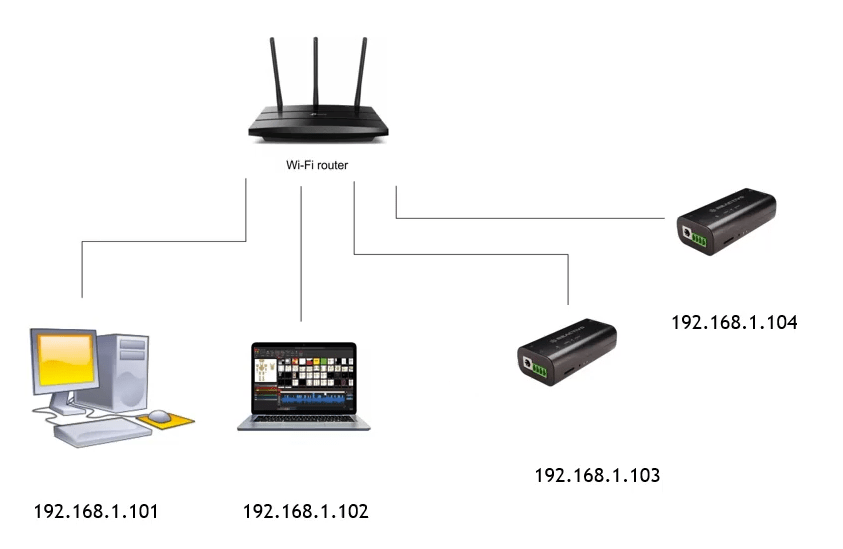
The Reactivo 2 device can be used with DHCP. The only challenge is finding the Reactivo 2 device’s IP address to access its web configuration. However, you can use the search function in the LED Strip Studio software, which provides a list of all connected Reactivo 2 devices along with their respective IP addresses.
How to quickly check network adapter settings? #
If you need to quickly check your network adapter settings, you can use a powerful command-line tool called ipconfig in Windows. This tool displays the properties of all network adapters on your computer.
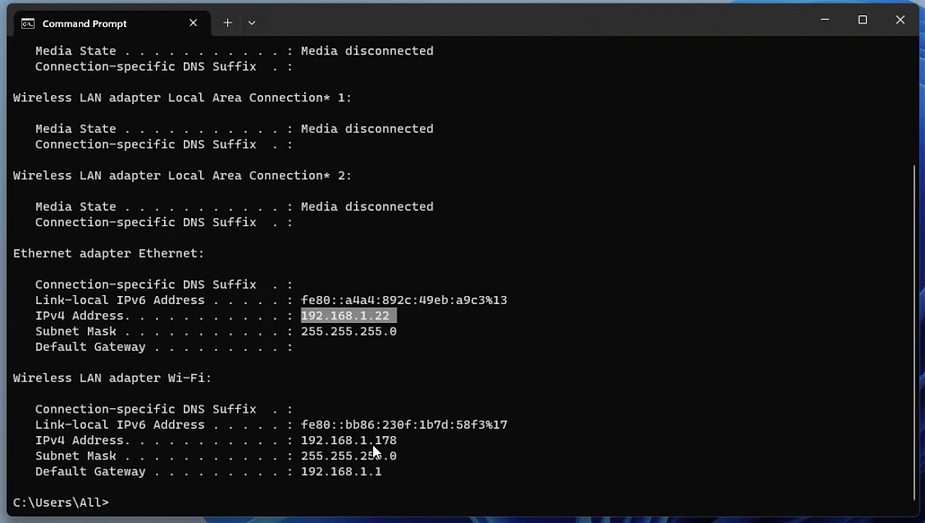
To get a more detailed list of settings, you can use the ipconfig -all command. By checking the configuration, you can determine whether the IP address was assigned via DHCP.
How to use an IP range other than 192.168.1.x? #
If you want to use an IP address range other than the standard 192.168.1.x, you can easily configure this in the web settings. However, if you decide to switch to a different IP address range, such as 10.0.0.x, be sure to first set the device’s IP address and then change your computer’s IP address. If you do not do this, you may be unable to access the device’s web configuration.
Since Reactivo 2 supports DHCP, you can use a different IP address range by adjusting the DHCP range in your Wi-Fi router’s settings.
How do I reset the device to its default IP address? #
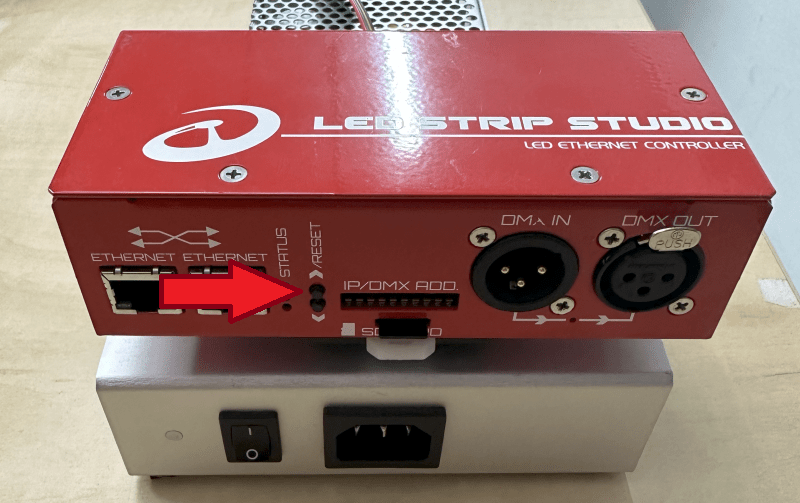
If you lose access to the device—for example, if the device’s IP address is set to 10.0.0.64 while your computer’s IP address is 192.168.1.22—you will not be able to access the web configuration. In this case, it is recommended to reset the device to the default IP address, which is 192.168.1.147 for LEC3 and SPI Matrix devices. To perform a reset, turn off the device and, when turning it back on, hold down the up button. Wait approximately 5 seconds, and the device will reset.
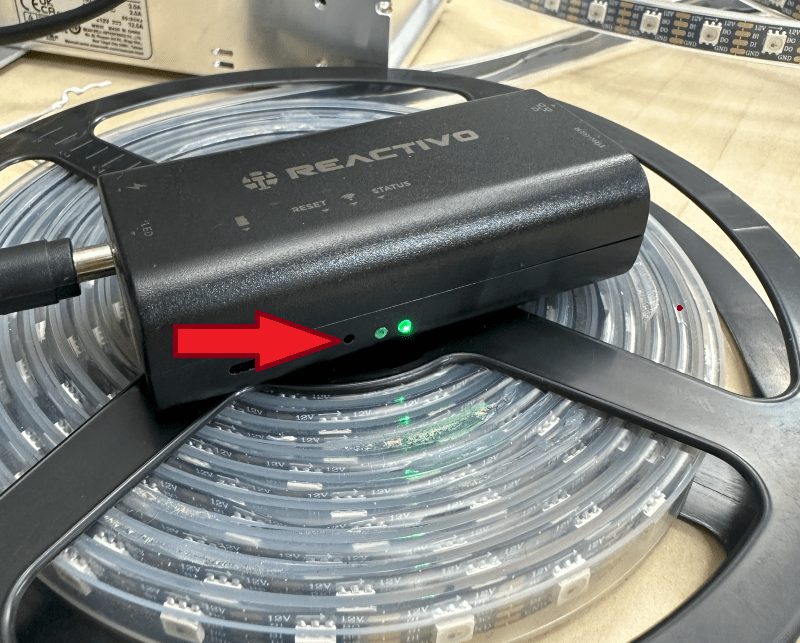
The Reactivo 2 device has a reset button that can be used at any time during operation.
Is that all I need to know? #
This covers the basic topics we usually discuss with clients during Zoom or in-person meetings. However, if you have further questions or encounter any issues, please don’t hesitate to contact us. We’re always here to help.
What is the default IP address for the LEC3 controller?
The default IP address for new LEC3 and SPI Matrix controllers is 192.168.1.147. You access the web configuration by typing that address into any browser while your computer is on the same subnet. If you’ve changed the IP and can’t get back in, you can reset it by holding the up button while powering on the device — it resets after about 5 seconds.
Should I use DHCP or a static IP for my LED controllers?
For professional installations, static IP addresses are strongly recommended. If the controller gets a different IP from DHCP after a reboot, your software and automation systems stop finding it. Assign each controller a fixed IP in your network’s range, document them, and you’ll never have to hunt for a device again. DHCP is fine for quick home setups with a Reactivo 2 where the LSS software’s search function can locate it automatically.
Can I control LED controllers from a different IP range, like 10.0.0.x instead of 192.168.1.x?
Yes — you configure the new IP in the controller’s web interface first, then update your computer’s network adapter to the same range. The order matters: change the controller IP first, then change your computer’s adapter settings. If you do it backwards, you’ll lose access to the controller’s web page and need to do a factory reset to get back in.
How do I find my LED controller’s IP address if I don’t know it?
If you’re using Reactivo 2, LED Strip Studio software has a built-in search function that scans the local network and lists all connected LSS devices with their IPs. For LEC3 and SPI Matrix, if you haven’t changed the default IP, try 192.168.1.147 in your browser. You can also use the Windows ipconfig command to check your own adapter’s subnet and then run a network scan tool to find the controller.
What does the ping command tell me about my LED controller connection?
Ping sends a small packet to the controller’s IP address and reports whether it got a response back and how fast. If you get a reply, the controller is reachable on the network — that confirms the physical cable and IP settings are correct. If you get “Request timed out,” the controller is either offline, on a different subnet, or the IP is wrong. Ping is always the first thing to check when Art-Net isn’t working.